
Toolbar Keys
Custom Sign Canvas Toolbar Keys Guide
Master the live custom sign designer controls below the preview canvas to cycle, position, resize, rotate, and align every element with exact precision.
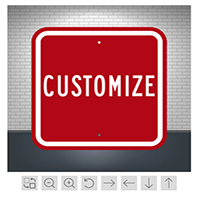
Essential Sign Customizer Controls
Select any layer on your custom sign to unlock these layout and editing tools.
Cycle Design Elements
Tap to cycle focus through different custom sign layers (text blocks, graphics, logos) without needing to click them directly on mobile.
Scale Text Down
Nudge the size of your active text or logo down incrementally for tight fitting and micro-adjustments.
Scale Text Up
Increase the size of your selected custom sign layer step-by-step without having to drag touch handles.
Rotate Sign Element
Spin your text or graphics incrementally counter-clockwise to dial in angled designs and custom layouts.
Precision Nudge Controls
Use the directional arrows (→, ←, ↓, ↑) to shift custom text and graphics pixel-by-pixel into exact placement.
Pro Selection & Custom Sign Alignment Tip
If overlapping text or artwork makes it hard to select a specific layer on mobile phones, tap the Cycle Elements button to toggle between layers effortlessly, then use the directional arrows for fine micro-adjustments!
Design Tool Toolbar Key Cheat Sheet
A quick reference breakdown of all customizer icons located below the live design canvas.
| Toolbar Icon | Control Name | Function Description |
|---|---|---|
|
|
Cycle Elements | Switches active selection to the next layer or graphic on the custom sign canvas |
| Zoom Out / Shrink | Decreases element scale in small steps | |
| Zoom In / Enlarge | Increases element scale in small steps | |
| Rotate | Rotates active layer counter-clockwise | |
→ |
Nudge Right | Shifts selected element slightly to the right |
← |
Nudge Left | Shifts selected element slightly to the left |
↓ |
Nudge Down | Shifts selected element slightly downward |
↑ |
Nudge Up | Shifts selected element slightly upward |